Once files have been uploaded it is more convenient to switch to OMERO.web: https://
Navigate to the training data
At the topleft of the browser window you can change which data to view. Go to general training > Rohola Hosseini.
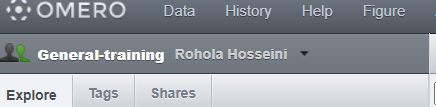
Go to 20211015_test_import > test_import_2022
Open image in iviewer
Right click on one of the filenames and click open with omero iviewer. On the right top you can see 3 tabs, with info, display settings, and finally with ROIs. As you can see several ROIs have already been added.
You can hover over the ROI to see the info displayed, double click to zoom in.
Add your own ROI
Find a nice spot to make a remark about, add a ROI, any type and write in the comment you want to add. Press save to store the created ROIs.
Share your ROI
You can share the created ROI by clicking the link icon next to show comments, like this you can immediately update a colleague on some interesting features in an image.